How to View DXF Files Online? Is There a Free DXF Viewer?
1. I received some DXF CAD design drawings but don't have CAD software installed. How can I open and view them quickly?
Since traditional CAD software like AutoCAD is extremely bulky (typically requiring several gigabytes of download space) and has complex installation procedures, using local software is not an efficient choice if you just need to inspect lines, dimensions, or floor plan layouts.
With our free online DXF viewer, you can open DXF drawings instantly simply by opening your web browser and uploading or dragging and dropping the file. This tool requires no registration or plugin installations, renders fully in the browser, processes data locally on your device for security, and is extremely fast.
2. How to Operate the Online DXF Viewer: Zooming, Panning, and Auto-fitting
Once the drawing is loaded, the viewer offers viewport navigation controls that match designers' native operation habits:
- Viewport Zooming: Scroll the mouse wheel forward to "zoom in" for small details, or scroll backward to "zoom out" for a full view. On mobile devices, double finger pinch gestures perform the same actions. Additionally, you can click the "Zoom In" (magnifying glass with plus) and "Zoom Out" (magnifying glass with minus) buttons in the top right corner to zoom precisely.
- Viewport Panning: Press and hold the left (or right) mouse button and drag to pan the drawing to change the viewing area. On mobile, drag with a single finger to pan.
- One-Click Auto-fitting (Fit View): If you accidentally zoom too far or pan away from the drawing, click the "Fit View" button (the icon with diagonal arrows) in the top right. The system will auto-align and center all drawing entities within 100ms, fitting the window perfectly.
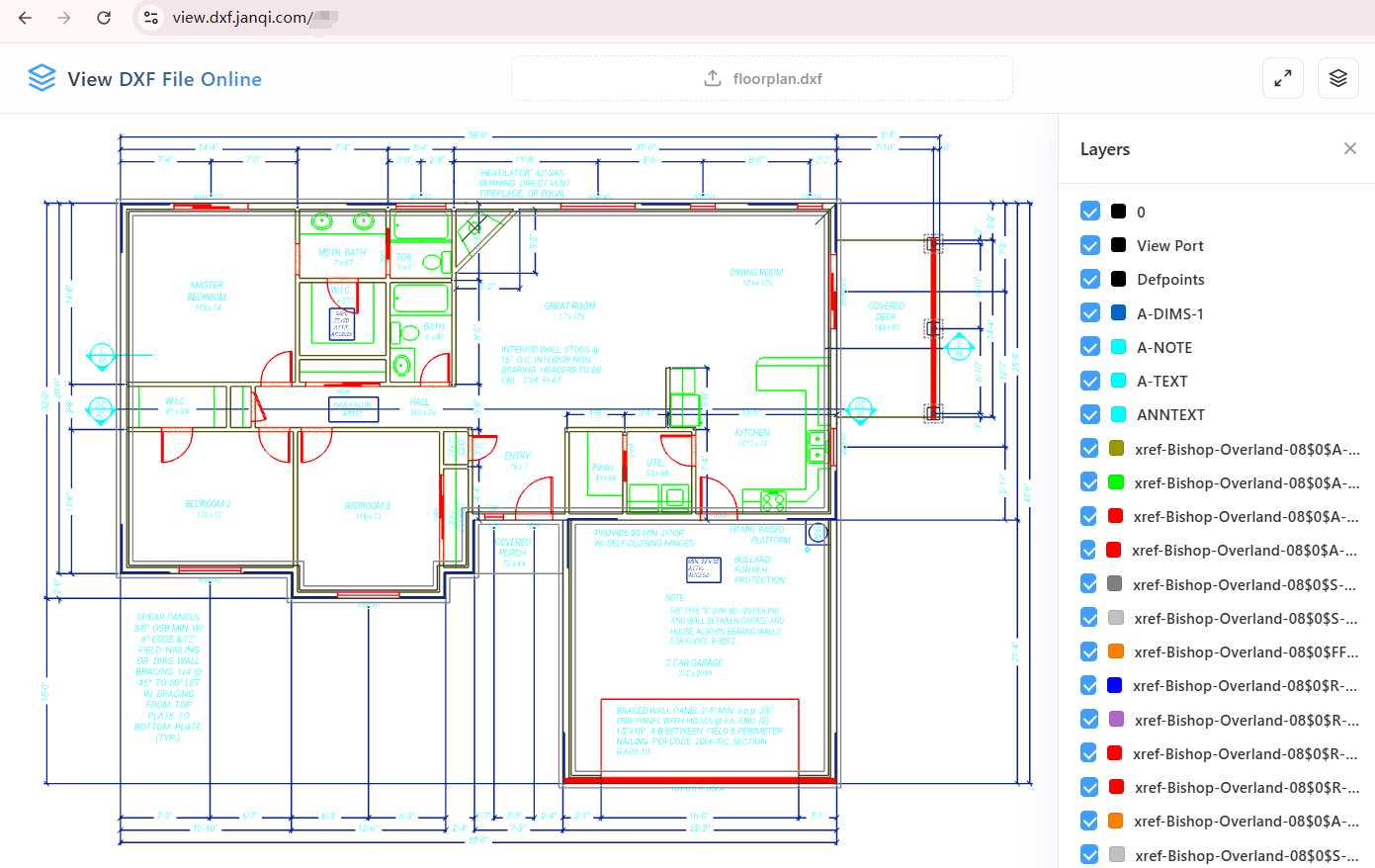
Fig: Example of architectural floor plan rendered online
3. Step-by-Step Instructions to Open and View DXF Files Online
The process is extremely simple and takes only three steps:
- Select and Upload: Click the "Click to select or drop DXF file" area at the top to select your file, or drag and drop it from your folder onto the page.
- Parsing and Hardware Rendering: The system automatically invokes your device's WebGL graphics card acceleration. It will draw high-precision vector objects on your screen within seconds.
- Layer Controls: Click the "Layer Management" icon in the top right corner to slide out the layer control panel, where you can turn individual layers on or off based on annotations or drawing structures.
4. How to quickly view Autodesk DXF design files on mobile phones?
Whether you are using iPhone (iOS) or Android, you don't need to download bloated CAD apps. Just visit our online viewer in WeChat, Safari, or Chrome to open DXF drawings seamlessly. The mobile viewer is optimized for touch screen gestures, supporting single-finger pan, double-finger rotate, and pinch-to-zoom.
5. How to seamlessly view DXF CAD drawings on Mac (Apple Computers)?
Traditional CAD software often performs poorly on macOS, leading to stutters or compatibility issues. This viewer is built on pure browser-side HTML5 and the high-performance Three.js library, offering smooth rendering in Mac Chrome or Safari with high Retina display sharpness. It also supports Windows, Linux, Android, iOS, and ChromeOS—simply open your browser to view CAD DXF files.
6. What if drawing texts don't render, or have other questions?
If you load a drawing and find that Chinese, Japanese, or Korean characters display as square boxes or are missing, or if you want to know more about supported formats and devices, please visit our Frequently Asked Questions (FAQs) page.