Online DXF Viewer FAQs
1. How does the DXF Viewer control layer visibility in CAD drawings?
When you import a complex architectural or mechanical DXF drawing, it is typically divided into dozens or hundreds of different layers (e.g., walls, pipelines, furniture, dimensions, etc.).
In this viewer, after loading your drawing, click the "Layer Management" icon in the top right corner to slide out the detailed layer list. You can toggle check-boxes to freely control the visibility of each layer. This is extremely helpful for designers to inspect drawing details and perform pre-print checks.
2. Why do CJK (Chinese, Japanese, Korean) characters fail to render in other DXF viewers? How does this site resolve it?
Traditional online viewers often fail to render East Asian characters (Simplified Chinese, Traditional Chinese, Japanese, Korean) or special characters (like German, Italian) due to lack of global character sets and regional font packs, resulting in square boxes (tofu blocks) or completely missing text.
This viewer integrates high-precision, open-source global fonts (including Roboto, Noto Sans Display, HanaMinA, and Nanum Gothic) to flawlessly render over 25 major languages and fonts, resolving missing character issues.
Fast Loading Black Technology: Since font libraries (like HanaMinA) are very large, we use an innovative Gzip compression scheme to save your data. Fonts are deeply compressed on the server side (size reduced by over 70%) and are decompressed on the fly using the browser's native DecompressionStream in the background, achieving a near-instant loading experience.
3. What file formats and import methods does the online DXF viewer support?
This application is fully compatible with standard CAD vector formats:
- Supported Formats: Fully supports 2D vector DXF (Drawing Exchange Format) files, in both ASCII and binary encoding.
- Import Method 1: Click the upload area in the center to select a
.dxffile from your local storage. - Import Method 2: Drag a
.dxffile from your desktop and drop it anywhere on the page to automatically trigger hardware-accelerated rendering.
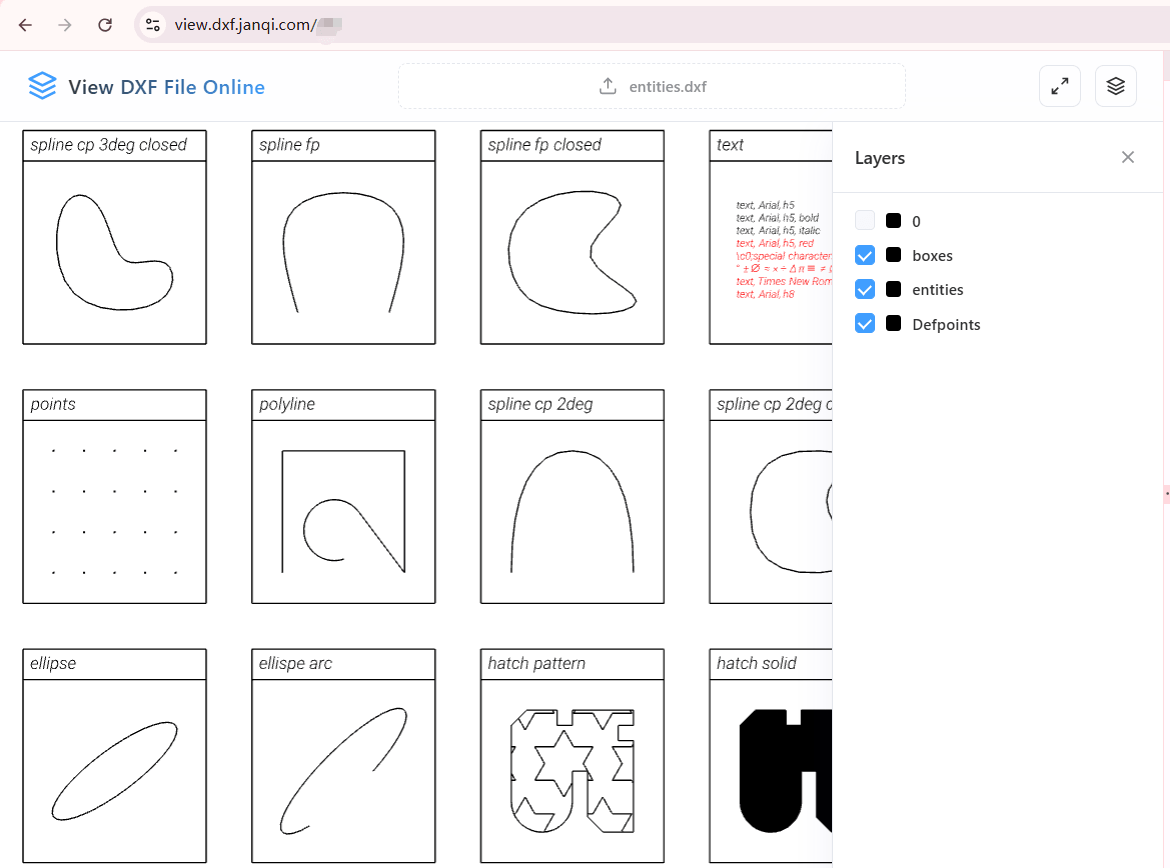
Fig: Example of basic entities and annotations rendered online
4. Which operating systems and devices are supported?
Since this viewer is built on standard HTML5 and WebGL hardware acceleration, it requires no plugins and offers excellent cross-platform compatibility:
It supports all major desktop operating systems (Windows, macOS, Linux, ChromeOS) and is fully responsive for mobile devices, running smoothly in major mobile browsers on iOS (iPhone / iPad) and Android. As long as your browser supports WebGL, you can pan and zoom drawings seamlessly.
5. Are there any sample DXF files to test the CAD viewer?
If you do not have a .dxf file at hand or want to test the rendering performance, we have prepared a standard AutoCAD sample drawing featuring common points, lines, polygons, and annotations.
Click the button below to download the sample file. You can then upload it on the homepage to test the layer controls, panning, and zooming functionalities.
6. How do I learn the viewer's gestures and button commands?
If you are new to this online viewer and want to learn about mouse controls for panning, zooming, using the zoom buttons, or auto-fitting, please read our DXF Viewer User Guide & Tutorial.